
How to add a film or livestream link
Your invitation doesn't store videos itself. You put the video on YouTube (or set up a call) and paste its link into the editor. Here's how, one step at a time. The pictures ring where to tap. The apps may look a little different on your phone, but the buttons have the same names.
Which one should I use?
| Link | Plays inside the invitation | Good for |
|---|---|---|
| YouTube | Yes | Your film, and livestreams to any number of guests |
| Yes, if Public | Families who already follow you there | |
| Zoom, Google Meet | No, opens the app | A small family call where relatives can talk back |
| No, opens the app | Guests who follow you on Instagram |
Your film: put it on YouTube
The film plays inside your invitation, in your design's frame. It has to be on YouTube, set to Unlisted: guests with the link can watch it, but it doesn't show up in searches or on your channel.
Open YouTube and tap +
In the YouTube app, sign in with your Google account and tap the + button at the bottom of the screen. If YouTube asks you to create a channel first, accept: it's free and takes a minute.

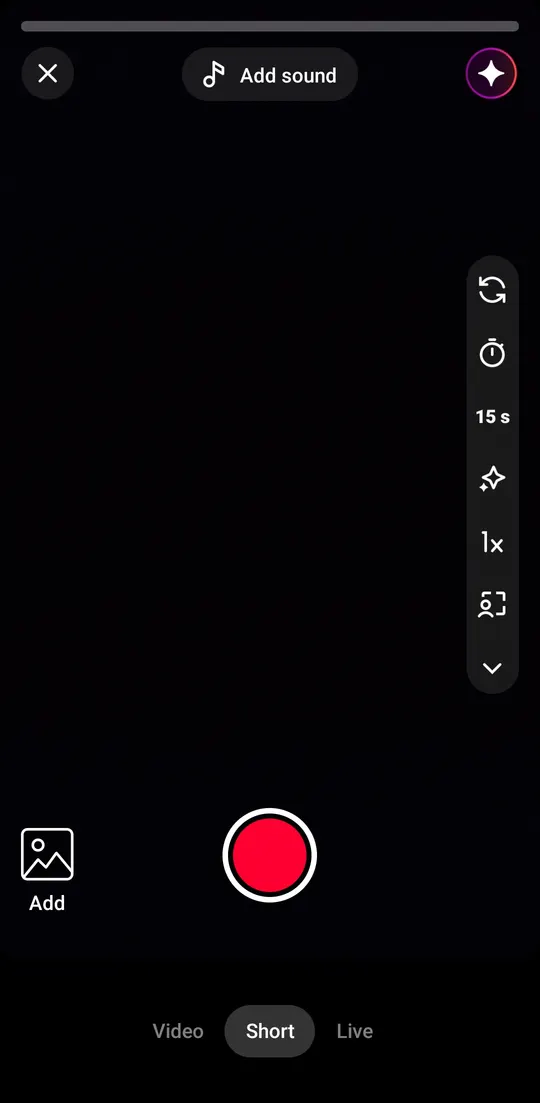
Switch to Video
The camera opens on Short. Tap Video at the bottom: a Short is cut to under three minutes, a video keeps your whole film.
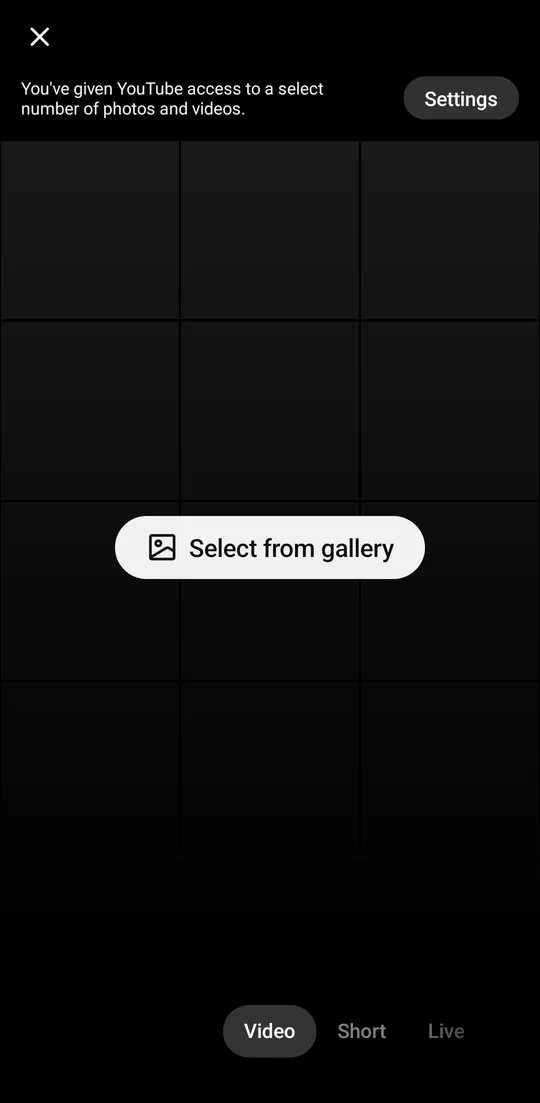
Tap Select from gallery
If YouTube asks for access to your photos and videos, allow it (or allow just the film).
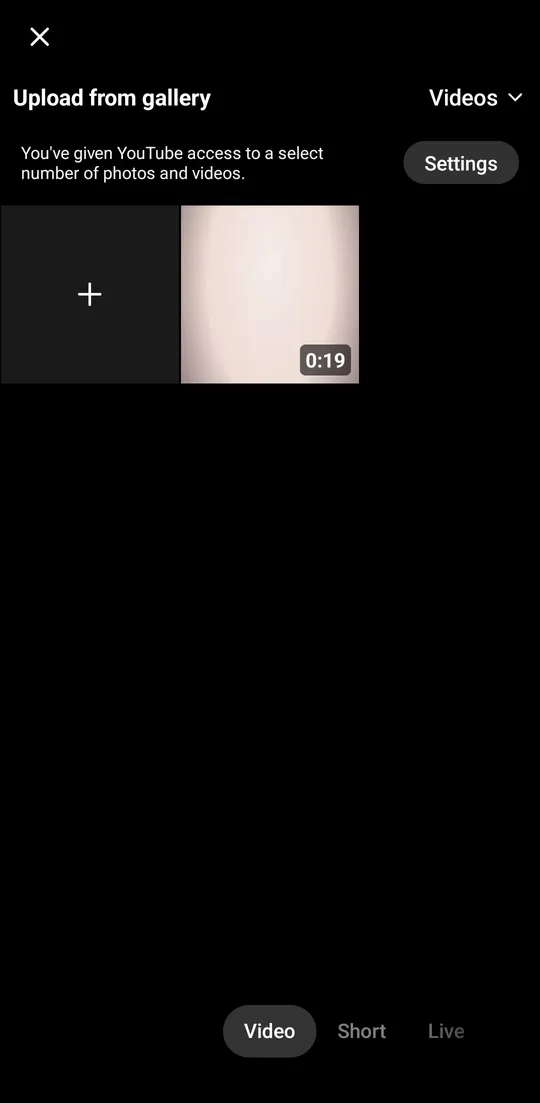
Pick your film
Tap the film. If you don't see it, tap Settings at the top and give YouTube access to it.
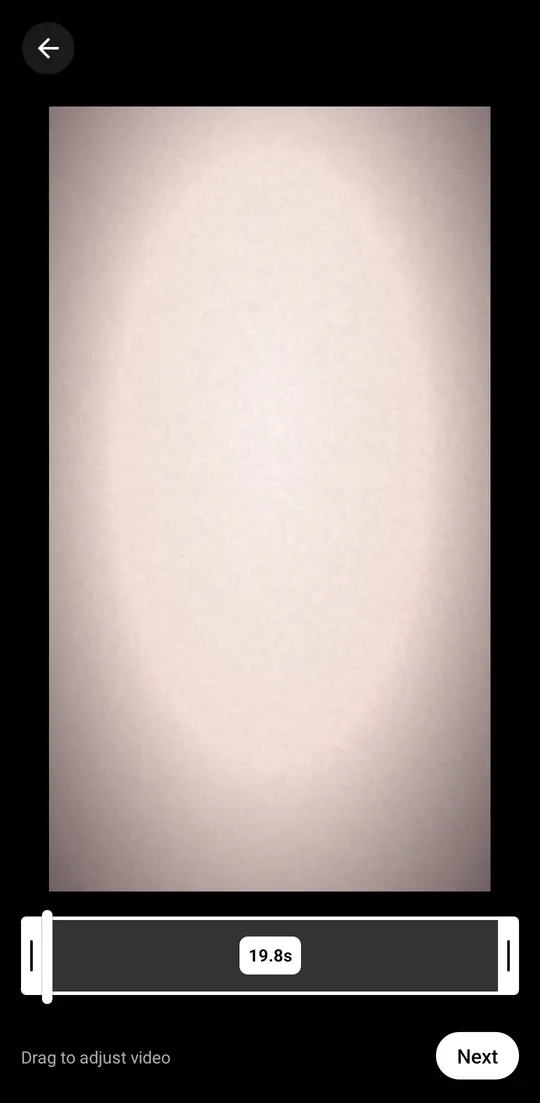
Tap Next
Leave the whole film selected and tap Next.
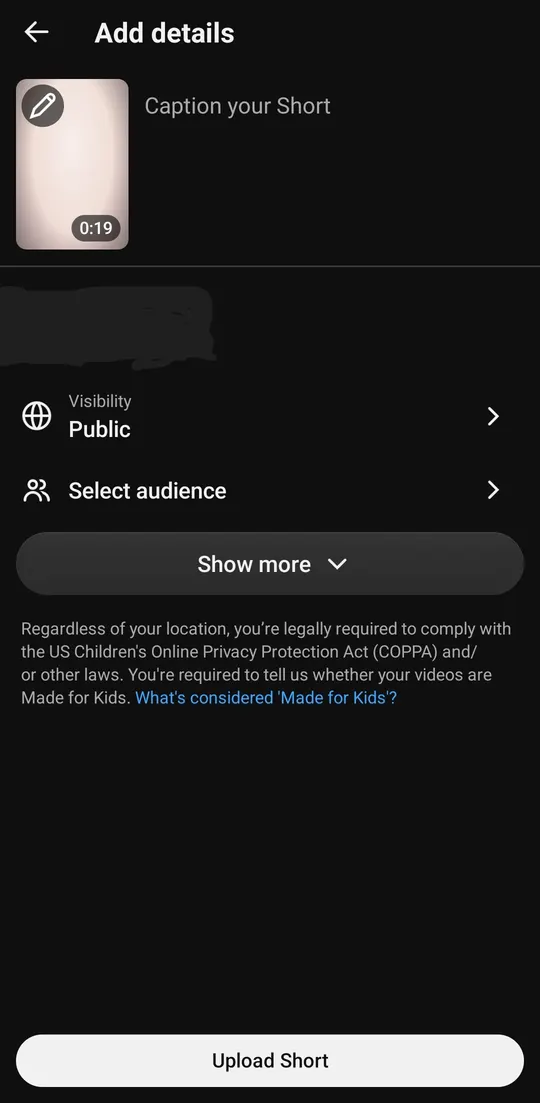
Tap Visibility
On Add details, give it a title, then tap Visibility. It starts on Public.
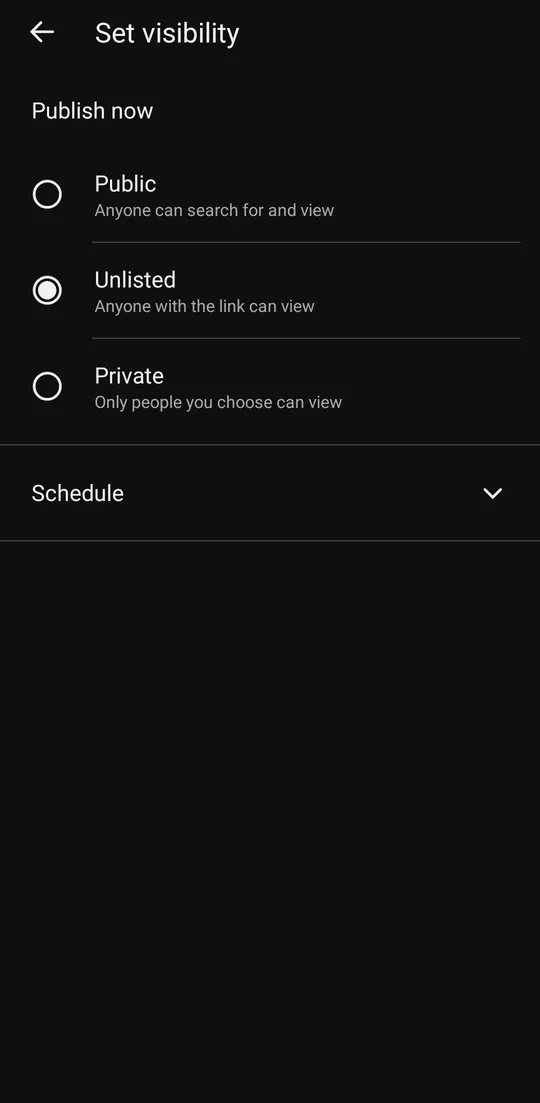
Choose Unlisted, then upload
Choose Unlisted and go back. Don't choose Private: a private video won't play for your guests. Then tap Upload at the bottom and wait until it has finished processing.
Copy the link
Open the video (under You → Your videos), tap Share and Copy link.
Your video Paste it into InviteNest
In the editor, open Photos → A film, tap the YouTube link field and paste. The preview shows it straight away. Tap Test the link to check it opens.
InviteNest editor
Good to know
- On a computer: go to studio.youtube.com, click Create → Upload videos, pick the file, click Next three times, choose Unlisted and click Save. The link is shown on that last screen with a copy button.
- Already on YouTube? Open the video, tap Share → Copy link. If it's Private, change it to Unlisted in YouTube Studio first.
- Use the link to one video (it looks like youtu.be/… or youtube.com/watch?v=…), not a channel or playlist link.
- Your photographer gave you the film as a file? Upload it the same way. A long film is fine; YouTube takes a few minutes to process it.
A livestream on YouTube
Best for a big audience: there's no limit on how many people watch, guests don't need an account, and it plays right inside your invitation. Set it up at least a day early: YouTube can take up to 24 hours to allow your first stream.
Is your photographer streaming? Ask them for the link
Most wedding photographers who stream use YouTube and can give you the link a few days before. If so, skip to the last step and paste their link.
Open YouTube Studio and click Go live
On a computer, go to studio.youtube.com, click Create at the top right and choose Go live. The first time, YouTube asks to verify your phone number and may make you wait up to 24 hours.
YouTube Studio Schedule the stream and set it to Unlisted
Click Manage → Schedule stream. Enter a title, choose Unlisted, and set the date and time of the function. Click Done.
Schedule stream Copy the stream's link
Click the Share arrow next to the stream and Copy video link. This link stays the same until the day, so you can add it now.
Stream Paste it into InviteNest
In the editor, open Venue → For guests who can't come in person, tap the Livestream link field and paste. The preview shows it straight away. Tap Test the link to check it opens.
InviteNest editor
Good to know
- Choose which function is streamed under the link. Your invitation shows Live now from 15 minutes before it starts, and Watch the recording after it ends.
- Streaming from a phone in the YouTube app needs a channel with enough subscribers. Scheduling from a computer works for any verified channel.
A Zoom meeting
Good for a small family call where relatives can talk back. Guests open it in the Zoom app; it doesn't play inside the invitation. On a free Zoom account a meeting stops after 40 minutes.
Schedule a meeting
In the Zoom app, tap Schedule. Give it a name, set the date, time and how long it lasts, and tap Save (or Done).
Zoom app Copy the meeting link
Open the meeting under Meetings and tap Copy invitation (or Share). Paste it somewhere first and copy only the link, the part that starts with https:// and has zoom.us/j/ in it.
Meeting Paste it into InviteNest
In the editor, open Venue → For guests who can't come in person, tap the Livestream link field and paste. The preview shows it straight away. Tap Test the link to check it opens.
InviteNest editor
Good to know
- If the meeting has a passcode, copy the link that already includes it (it ends in ?pwd=…), so guests aren't asked for one.
A Google Meet call
Like Zoom: a call where relatives can talk back, opened in the Meet app or browser. On a free Google account a call with three or more people stops after 60 minutes, and someone in the call has to let each guest in.
Create a meeting for later
Go to meet.google.com (or open the Meet app), tap New meeting and choose Create a meeting for later (on a phone: Get a meeting link to share).
Google Meet Copy the link
Tap Copy next to the link. It looks like meet.google.com/abc-defg-hij.
Your meeting link Paste it into InviteNest
In the editor, open Venue → For guests who can't come in person, tap the Livestream link field and paste. The preview shows it straight away. Tap Test the link to check it opens.
InviteNest editor
A Facebook Live
If your family already lives on Facebook. The live video plays inside the invitation if it's set to Public.
Schedule a live video
On Facebook, tap What's on your mind?, choose Live video, then Schedule (on a computer: Live video → Schedule a live video). Set the date and time and make the audience Public.
Facebook Copy the link
Open the scheduled live post, tap Share and Copy link.
Your live post Paste it into InviteNest
In the editor, open Venue → For guests who can't come in person, tap the Livestream link field and paste. The preview shows it straight away. Tap Test the link to check it opens.
InviteNest editor
An Instagram Live
Instagram doesn't give a link to a live before it starts, so share your profile instead: when you go live, guests who open it see the live ring on your photo. Guests need an Instagram account to watch.
Copy your profile link
Open your profile, tap Share profile and Copy link. It looks like instagram.com/yourname.
Instagram Paste it into InviteNest
In the editor, open Venue → For guests who can't come in person, tap the Livestream link field and paste. The preview shows it straight away. Tap Test the link to check it opens.
InviteNest editor
Good to know
- Make the account public on the day, or guests who don't follow you won't see the live.